How to Identify Why a File Does Not Run Properly Even When the Download Shows 100% Completion
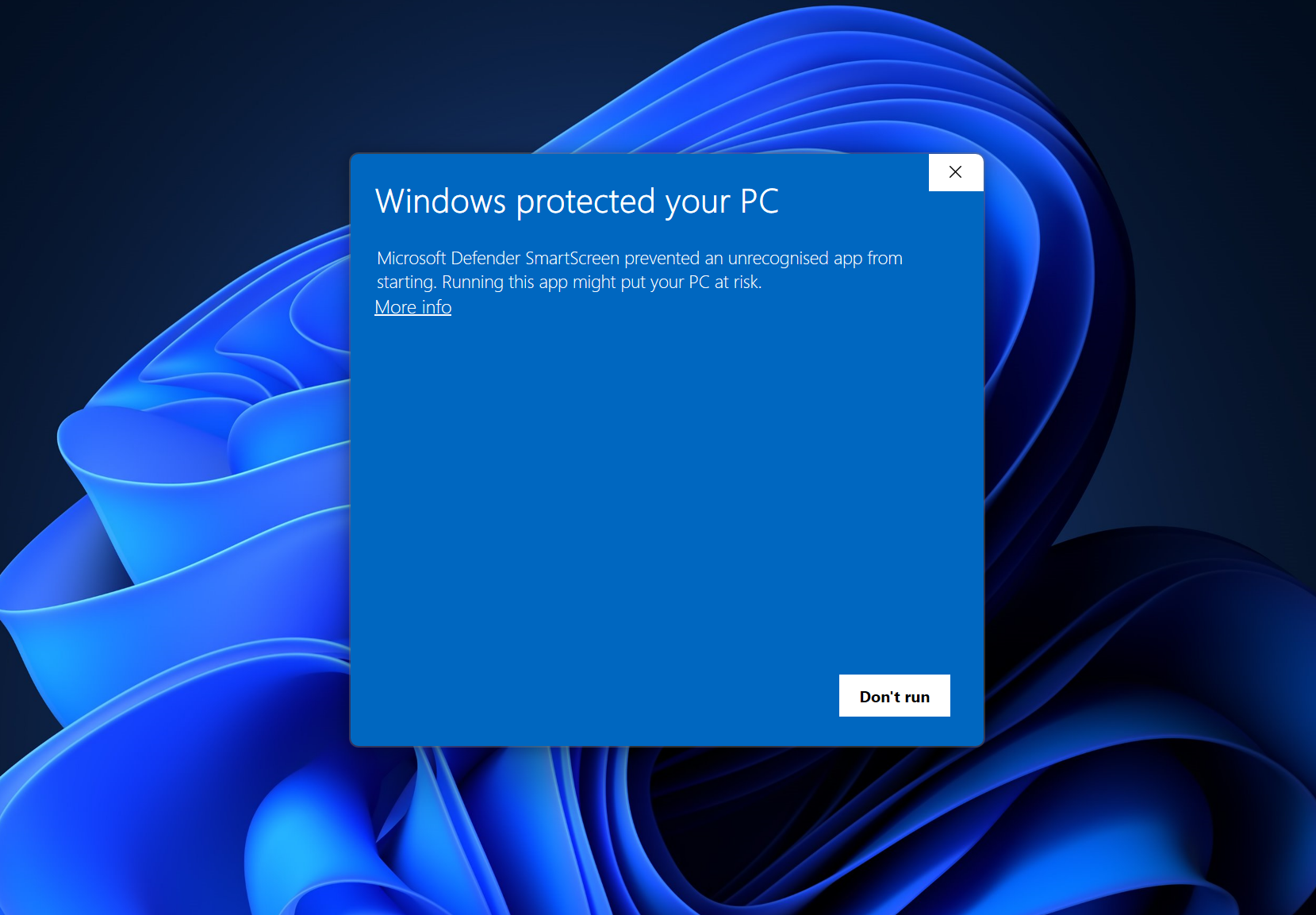
Reaching a 100% completion mark on your web browser or download manager is usually a cause for relief. However, many PC users encounter a frustrating scenario: the progress bar shows the download is completely finished, but double-clicking the file produces no response, crashes silently, or triggers an error pop-up.
A 100% download status only indicates that the data transfer process has stopped. It does not guarantee that the file was written to your storage without errors, that your operating system trusts the file, or that your computer possesses the necessary software libraries to run it.
This guide provides a quick diagnostic matrix to identify why a completed download refuses to run on Windows and shows you how to resolve security blocks, antivirus quarantines, and missing runtime errors.
Quick diagnostic matrix: What to check when a 100% completed download fails
Before changing complex operating system settings, use this diagnostic matrix to match your specific symptom with the correct troubleshooting step:
If your download reaches 100% but behaves unexpectedly, identifying the exact symptom in the table above will direct you to the underlying system cause.
How to unblock files blocked by Windows SmartScreen and Korean antivirus software
Local security systems on Windows are the most common cause of silent execution failures. Security tools frequently lock downloaded executable files (.exe) without displaying an obvious error prompt.
Unchecking the Windows SmartScreen file block
When you download an executable file from a web browser, Windows attaches a hidden security flag known as Mark-of-the-Web. Windows SmartScreen uses this flag to prevent unfamiliar files from executing.
To remove this block, right-click the downloaded file and select "Properties." On the "General" tab, look at the bottom section labeled "Security." Check the box next to "Unblock" (차단 해제) and click "Apply." Once unblocked, double-clicking the installer will allow it to run normally.
Restoring files quarantined by AhnLab V3 or Alyac
In Korea, popular local antivirus applications like AhnLab V3 (안랩 V3) and Alyac (알약) employ aggressive real-time scanning (실시간 감시). These tools often isolate downloaded setup files or game patches immediately upon transfer completion.
If your downloaded file suddenly disappears from your download folder, open your antivirus main console and navigate to the "Quarantine Log" (개인검역소 / 차단 내역). Locate the isolated file, select "Restore" (복원), and add the file or folder to your antivirus exclusion list to prevent it from being locked again.
Fixing missing Visual C++ libraries and archive extraction errors
If your file passes security checks but still displays error pop-ups during launch, the issue usually involves missing software environments or corrupted archive data.
Installing Microsoft Visual C++ Redistributable packages
Many PC games and application installers depend on Microsoft Visual C++ runtime libraries to run. If your computer lacks the required runtime version, launching the file will trigger missing DLL error messages (such as MSVCP140.dll or VCRUNTIME140.dll).
To fix this issue, visit the official Microsoft support page and download the multi-architecture Visual C++ Redistributable package (Visual C++ 재배포 가능 패키지). Installing the combined 2015–2022 runtime package resolves the vast majority of application launch errors.
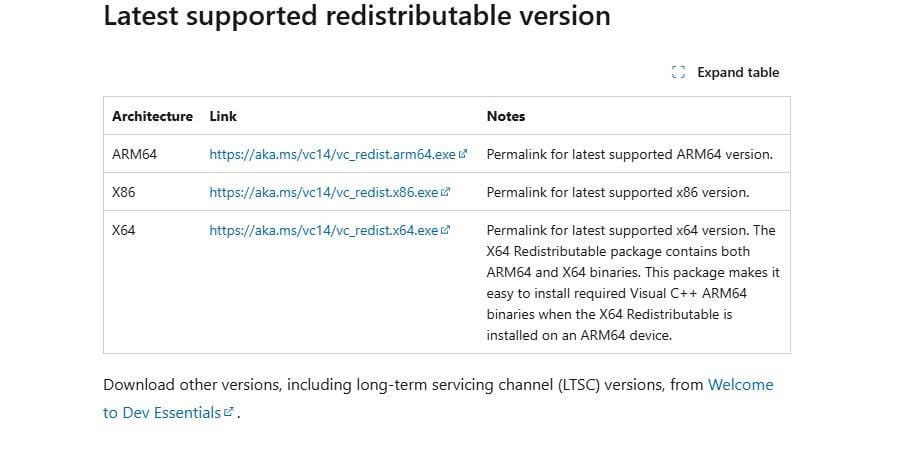
Official Microsoft page providing Visual C++ Redistributable packages for x86, x64, and ARM64 to resolve missing runtime library errors.Testing corrupted archives with Bandizip
If you downloaded a compressed archive (.zip, .rar, or .egg), reaching 100% completion does not guarantee that the archive data is intact. Brief network hiccups can corrupt individual compressed sectors.
Instead of forcing extraction, open the archive using Bandizip (반디집) and click the "Test Archive" (압축 파일 검사) button. Bandizip will scan the internal file structure and notify you if the download suffered data corruption during transfer, confirming whether a fresh download is necessary.
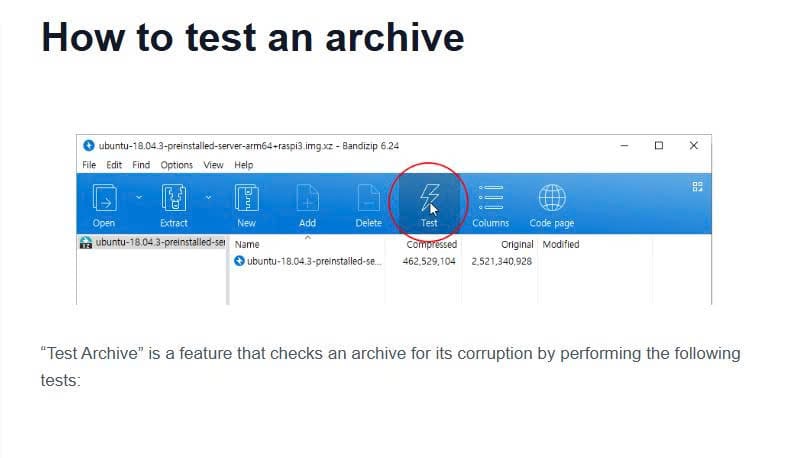
Practical solutions for fixing broken 100% downloads
Here are quick answers to common questions about resolving 100% completed download errors:
What should I do first when a 100% completed download refuses to open?
Compare the file size in bytes against the size listed on the official download webpage. If the file size matches, right-click the file, open "Properties," and check the "Unblock" (차단 해제) box on the General tab.
Can antivirus software cause a 100% completed file to fail silently?
Yes. Antivirus programs like AhnLab V3 or Alyac scan files immediately upon download completion and may quarantine execution permissions without showing a desktop pop-up. Check your antivirus quarantine history log to restore the file.
How can I confirm if a download is corrupted if no checksum is provided?
Open compressed archives using Bandizip and run an archive integrity test. If the file is an executable, open it in a basic text editor like Notepad; if the first few characters do not contain readable header text (such as "MZ"), the download was corrupted.